
Copyright (c) 2023, Intercom, Inc. (
[email protected]) with Reserved Font Name "Montserrat". This Font Software is licensed under the SIL Open Font License, Version 1.1.Copyright (c) 2023, Intercom, Inc. (
[email protected]) with Reserved Font Name "Inter". This Font Software is licensed under the SIL Open Font License, Version 1.1. Table of contents Apple iOS Photo Location Settings

Configure Apple iPhone and iPad device settings for image location metadata in Pegasus
Updated over a year ago Table of contentsFor Apple devices (iPhone & iPad) you will need to configure the Camera Location and Capture settings:
Select the Settings icon from Apple device Home Screen.
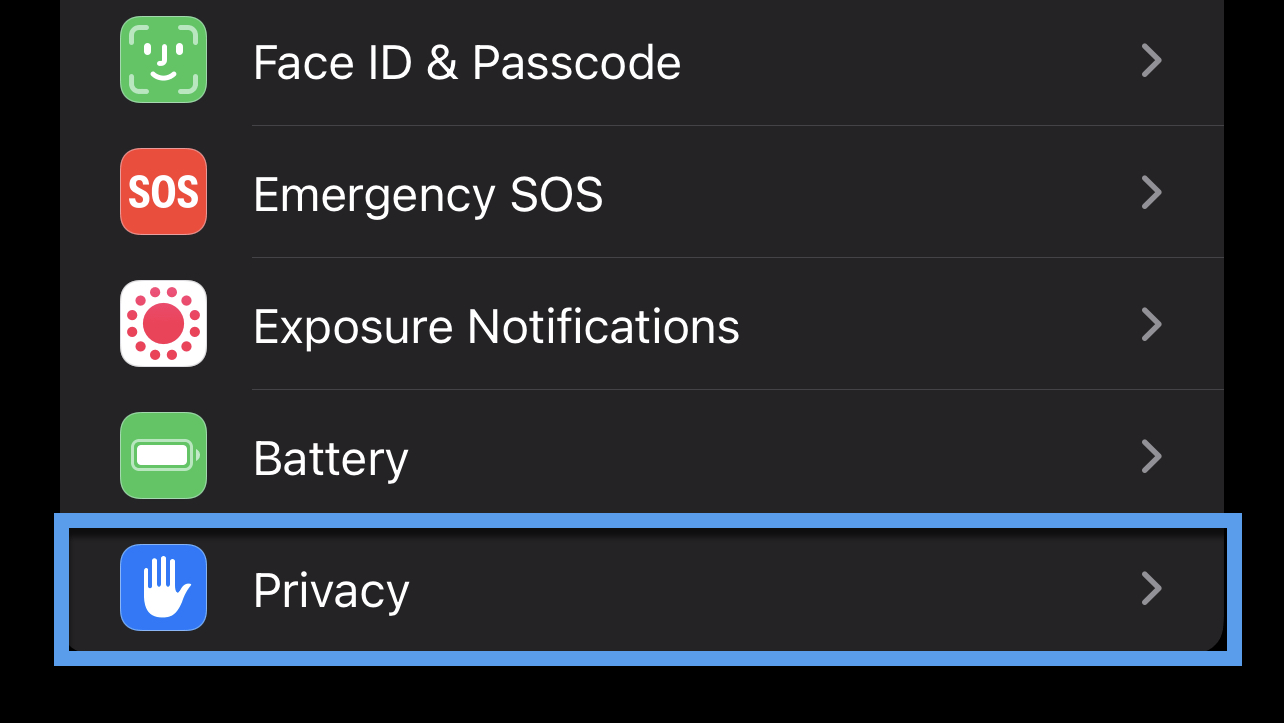
Select Privacy:

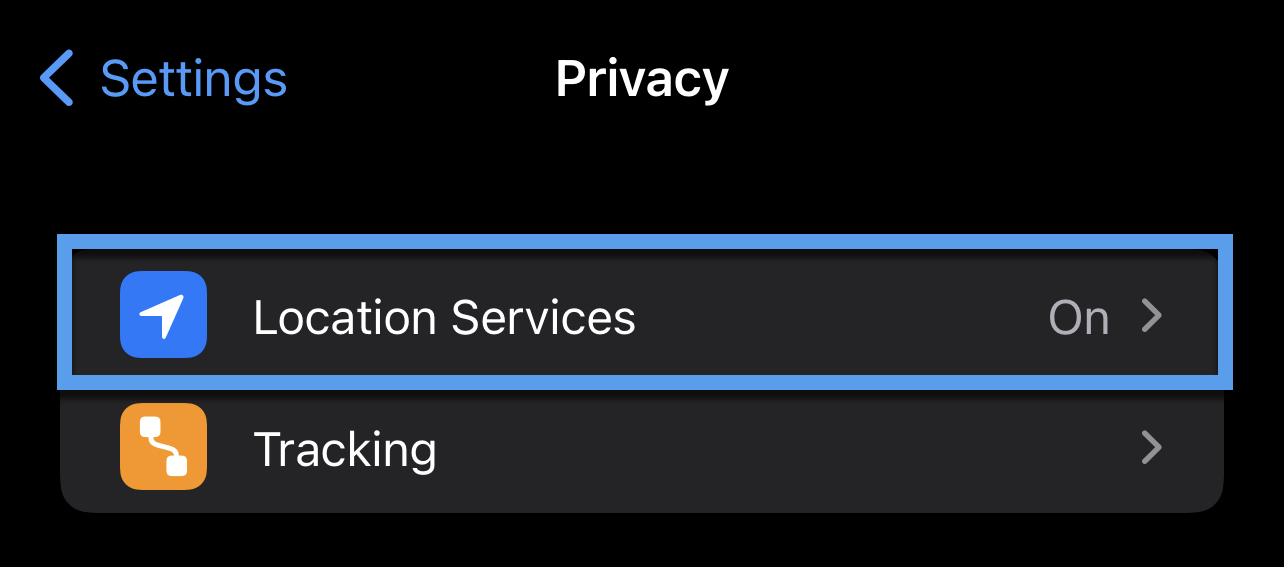
Select Location Services:

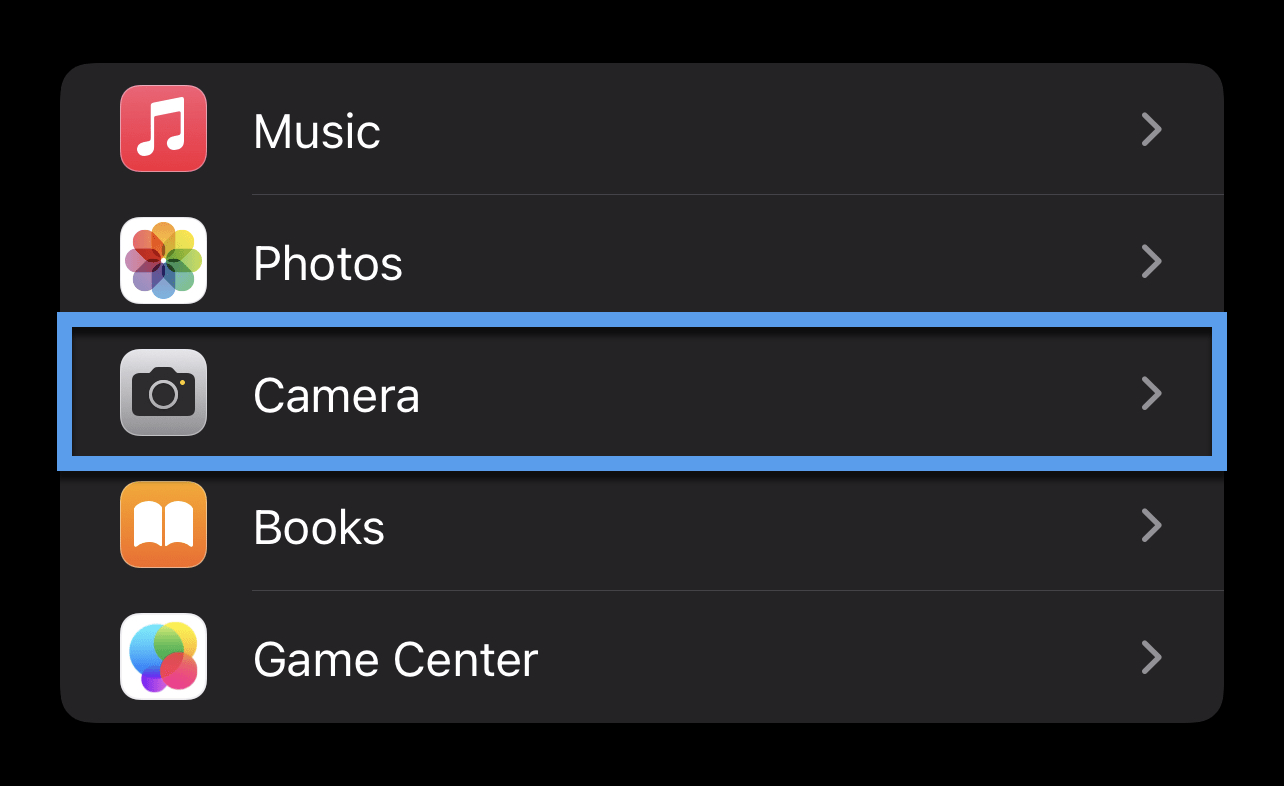
Select Camera:

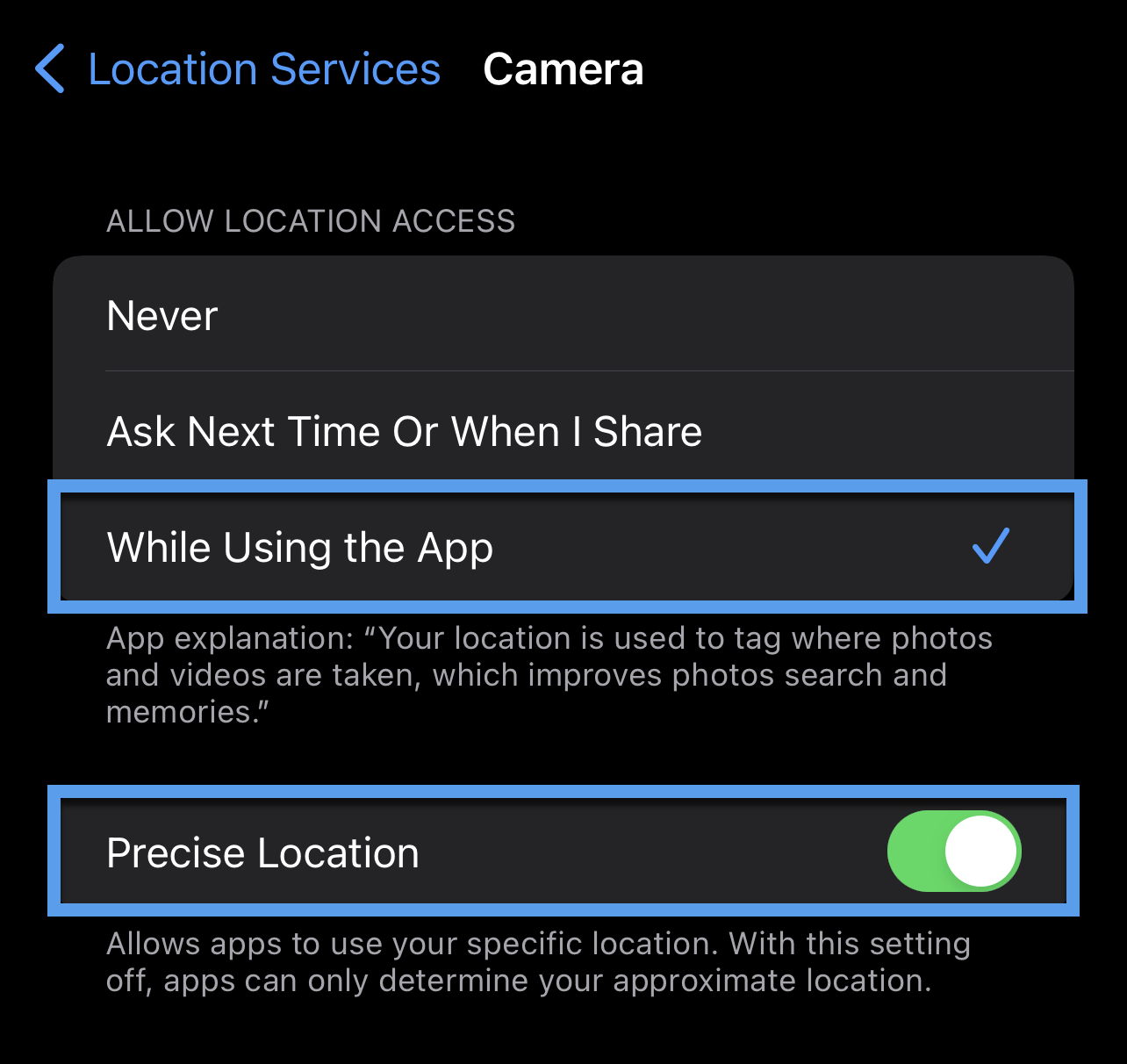
Select While Using the App and turn on Precise Location for more accurate location data:

Next, we'll need to configure your Apple device's camera capture settings. From the Settings page on your device:
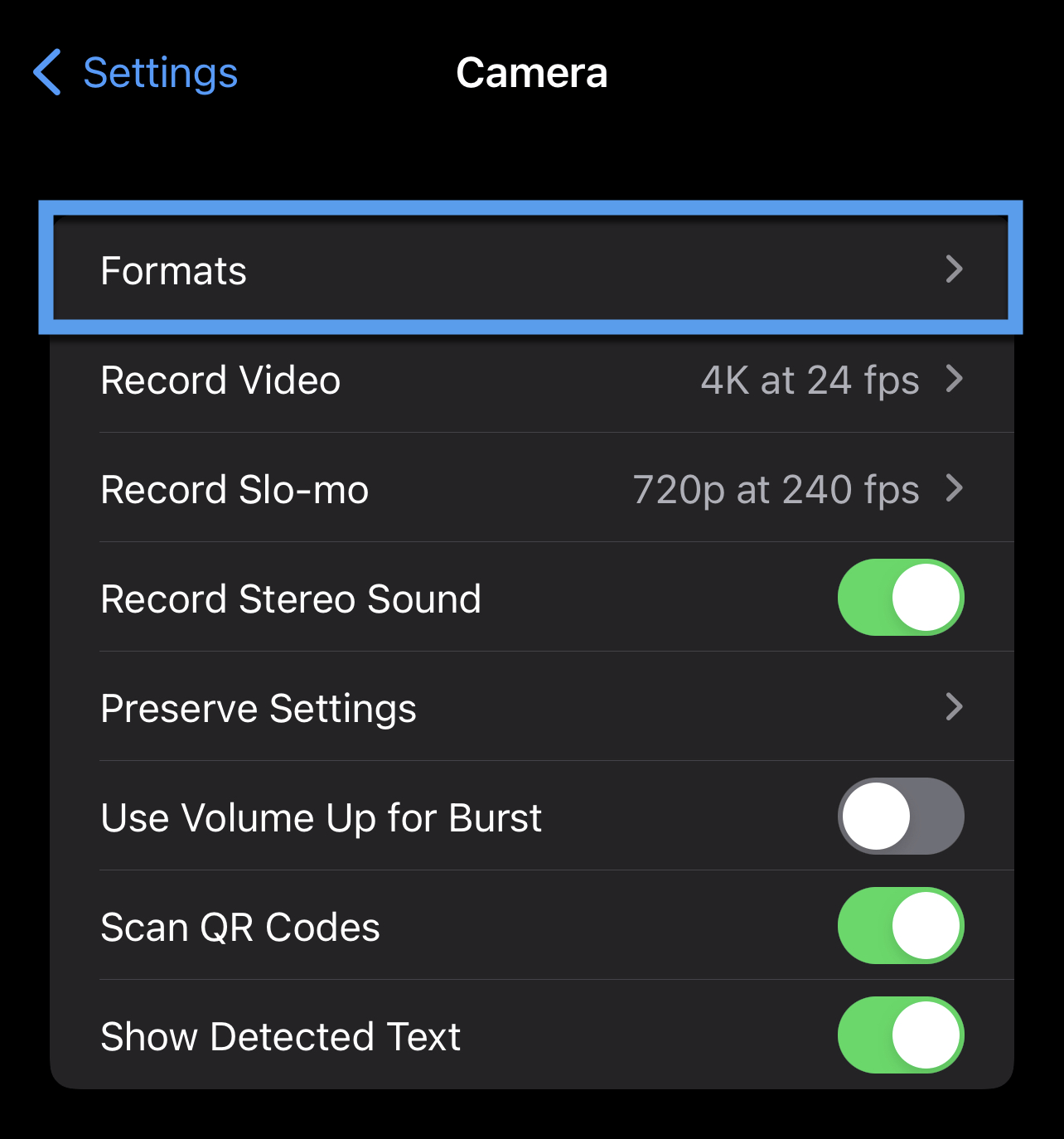
Select Camera.

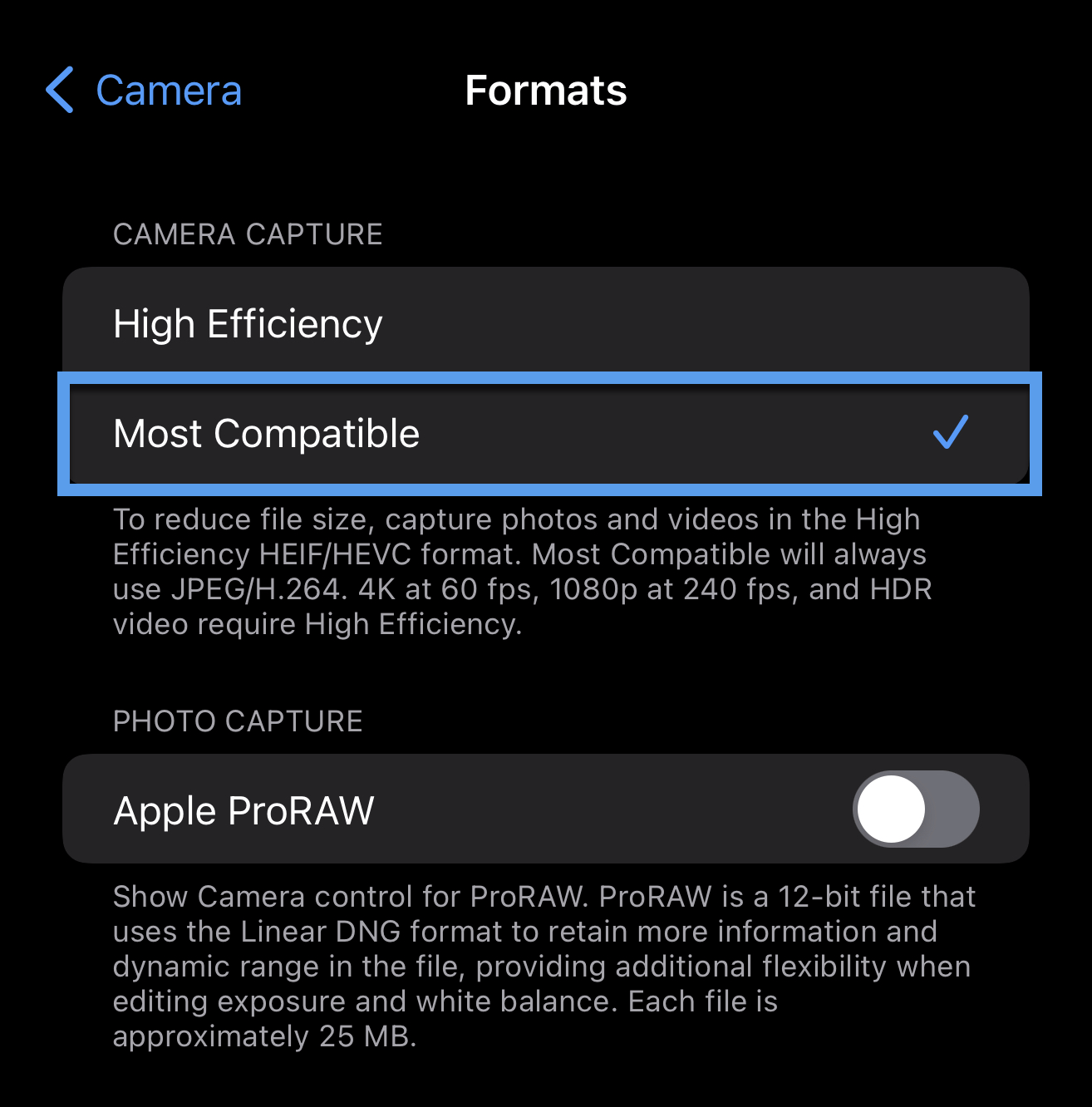
Select Formats.

Select Most Compatible.

Image location should now be displayed in Pegasus for all images captured with this device and uploaded to your project in Pegasus.
Related Articles Using the Map Tab in Photos Did this answer your question?😞😐😃