
Copyright (c) 2023, Intercom, Inc. (
[email protected]) with Reserved Font Name "Montserrat". This Font Software is licensed under the SIL Open Font License, Version 1.1.Copyright (c) 2023, Intercom, Inc. (
[email protected]) with Reserved Font Name "Inter". This Font Software is licensed under the SIL Open Font License, Version 1.1. Table of contents Exporting User Timecards & Mileage to Excel Updated over 2 years ago Table of contents
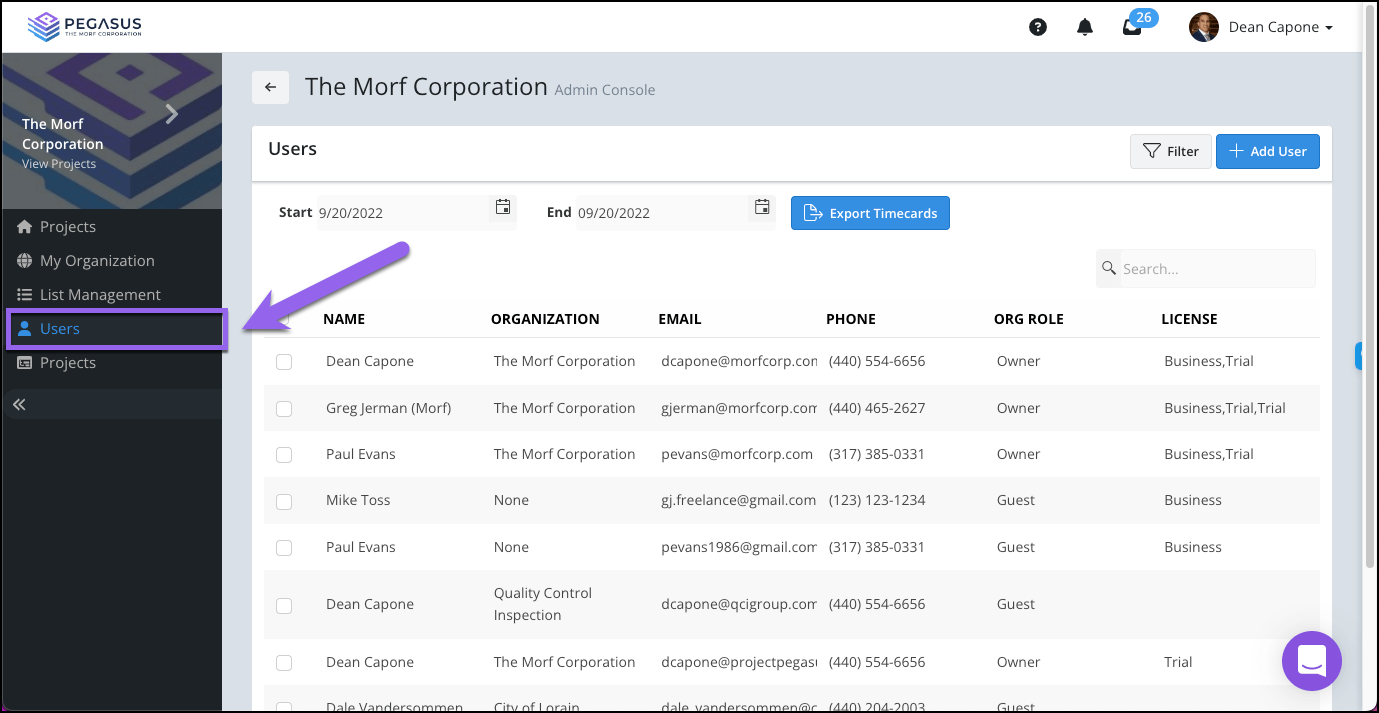
From the Admin Console navigate to the Users page.

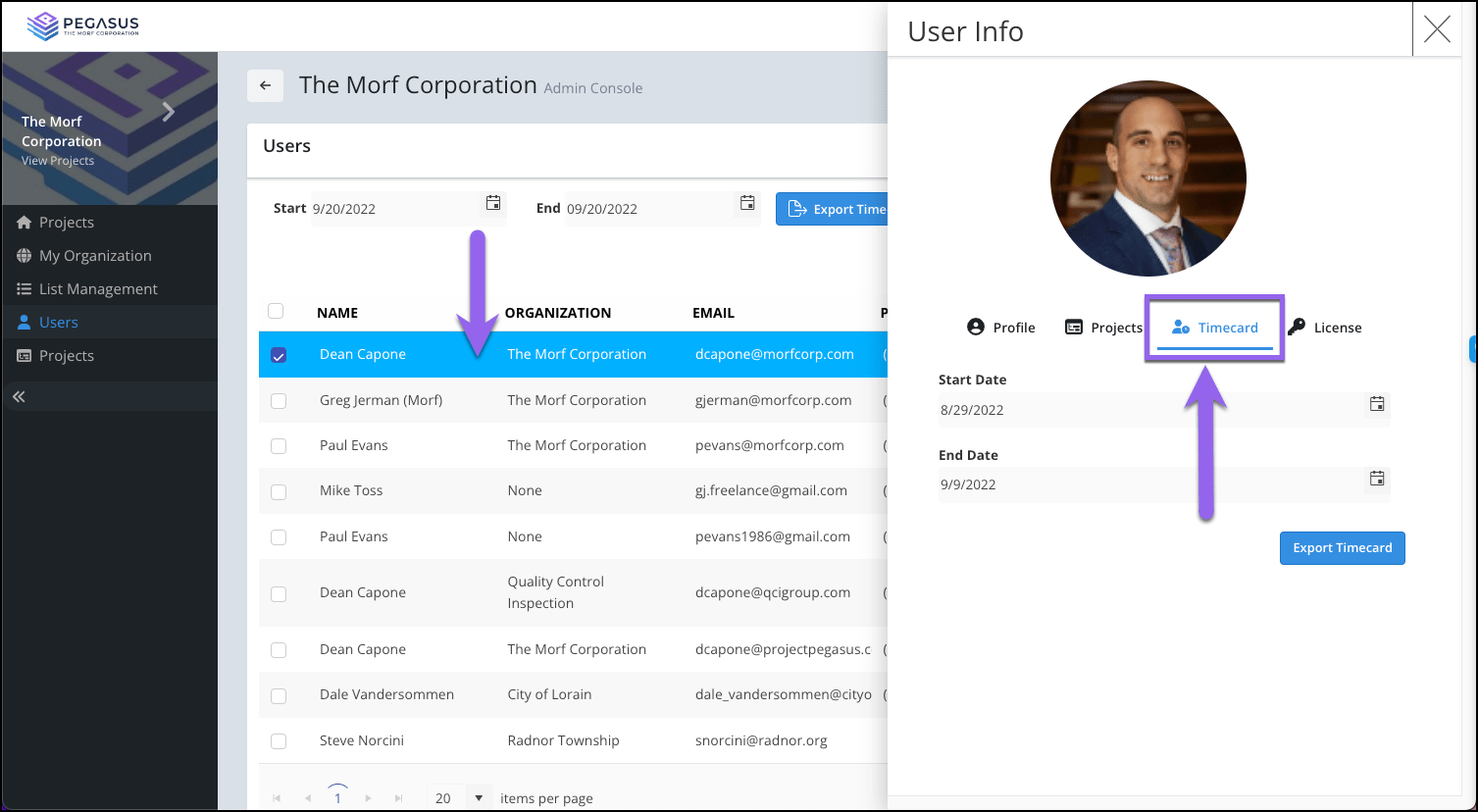
Select the desired user from the grid. From the side blade select the Timecard tab.

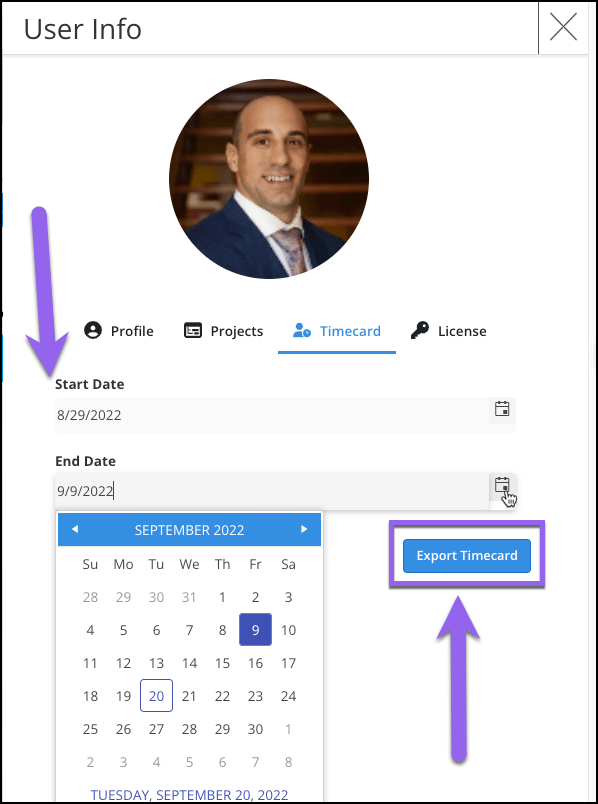
Select a Start Date and End Date using the calendar icons. Select the Export Timecard button.

The User Timecard & Mileage file will Export as an Excel file displaying Project Time and Mileage for the date range selected.
Exporting Multiple User Timecards & Mileage
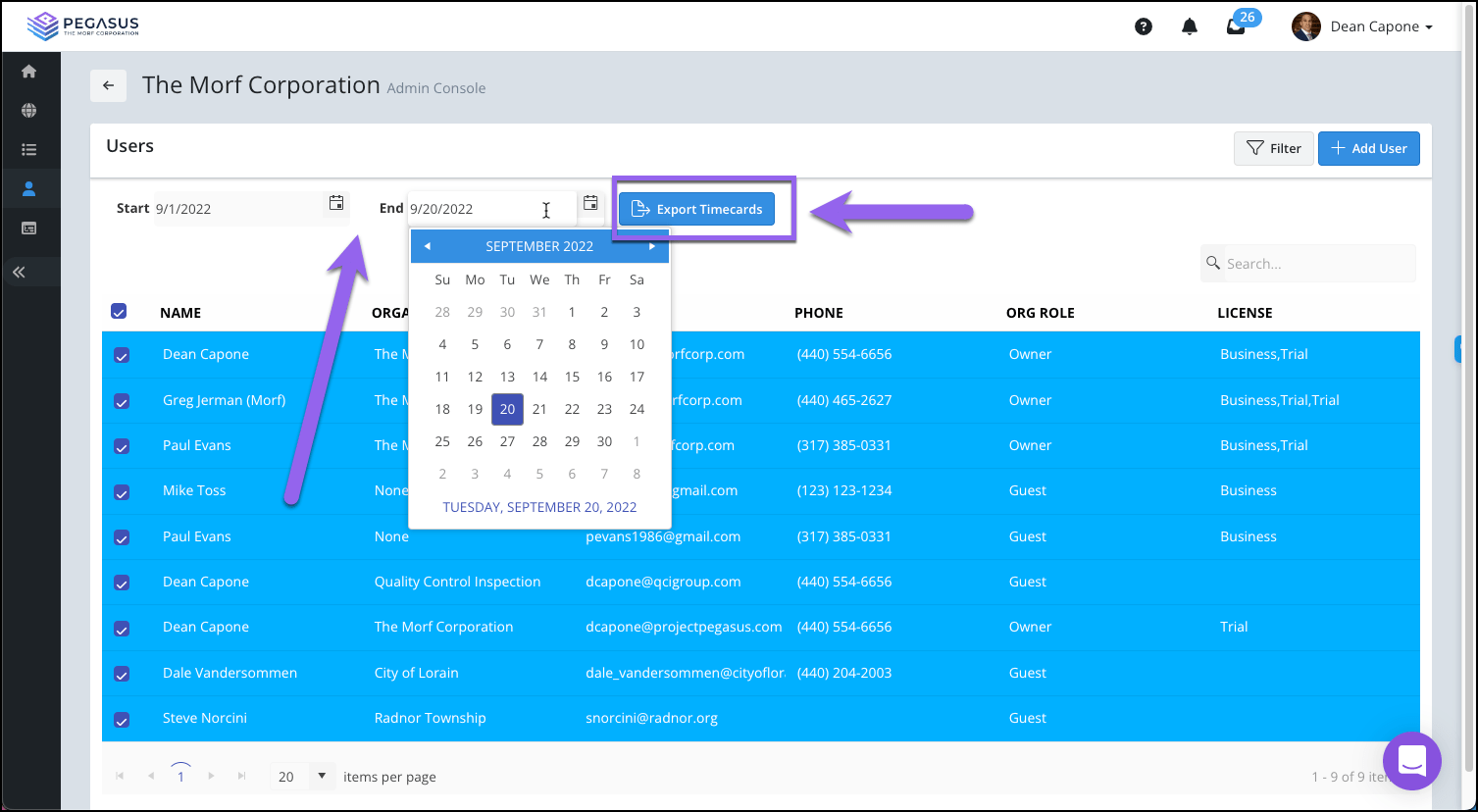
Navigate to the Users page from the Admin Console.
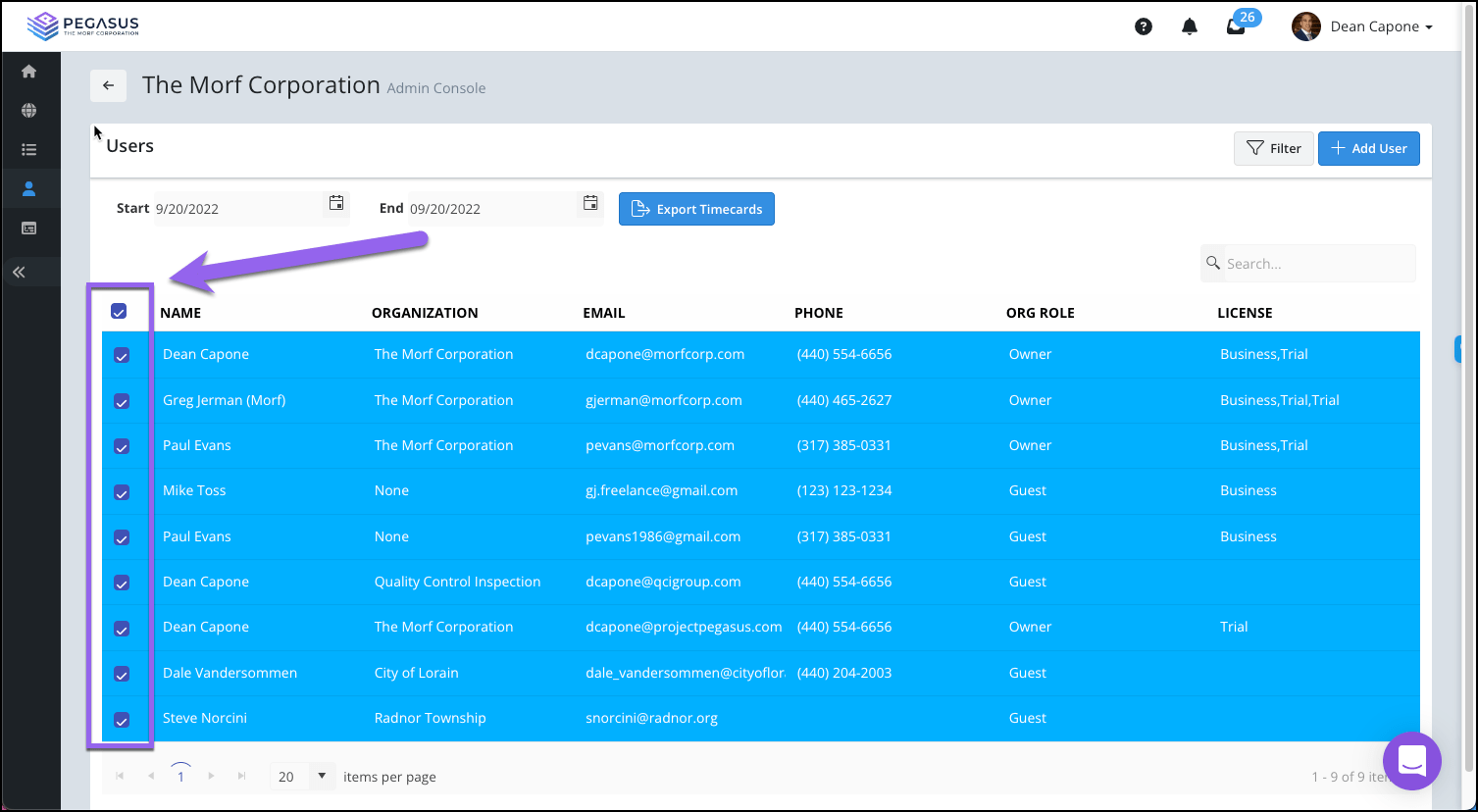
Use the checkboxes on the left side of the Users grid to select all users Time & Mileage to be exported.

Use the Start and End Date pickers located above the checkboxes to set your Date Range for all users selected.
Select the Export Timecards button.

All Timecards for the selected users will export as an Excel file.