
Copyright (c) 2023, Intercom, Inc. (
[email protected]) with Reserved Font Name "Montserrat". This Font Software is licensed under the SIL Open Font License, Version 1.1.Copyright (c) 2023, Intercom, Inc. (
[email protected]) with Reserved Font Name "Inter". This Font Software is licensed under the SIL Open Font License, Version 1.1. Table of contents Photo Tags
.gif)
How to Add Tags to Photos in your Pegasus project
Updated over a year ago Table of contentsHow to Add Tags to Photos: From Attachments Section
-
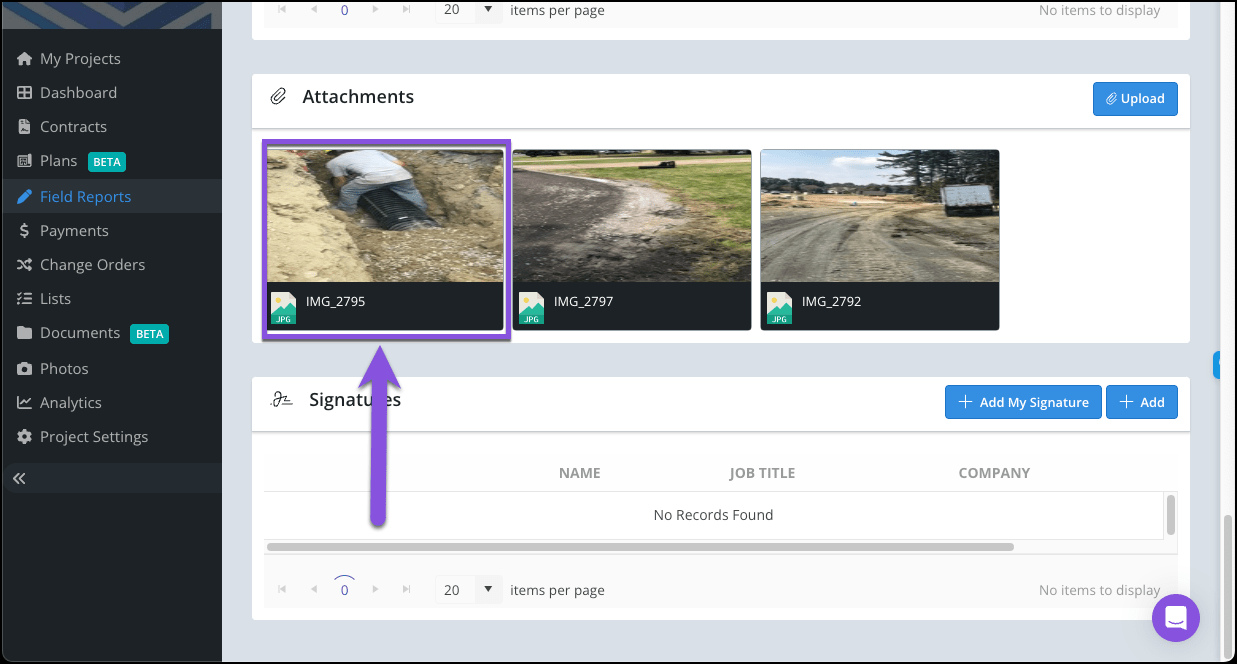
From your Field Report's Attachments section select the desired photo.
From your Field Report's Attachments section select the desired photo.

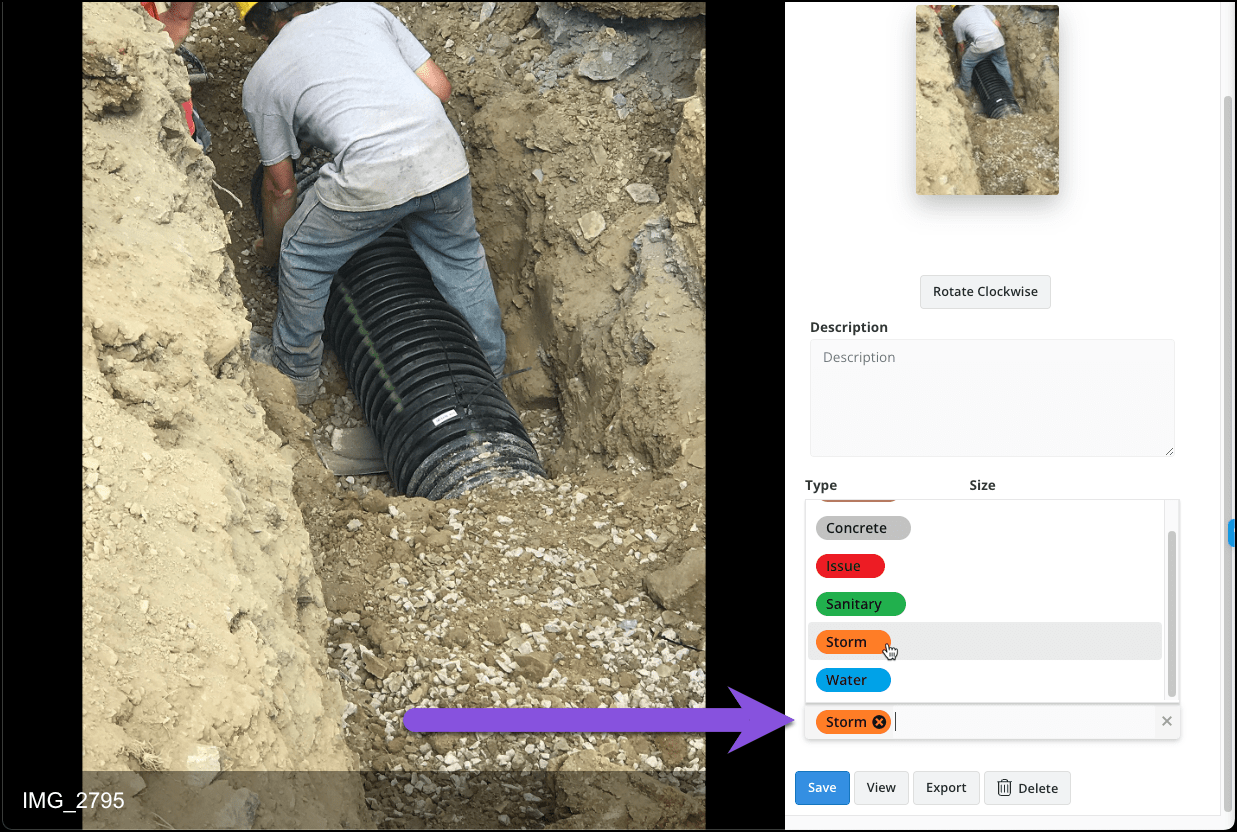
2. Select the Tags field to add one or more Tags to the Photo (Remember the Attachment's Tag Type list is a separate list from the Field Reports Tag Type list).
3. Select the Save button.

NOTE: You can also add, remove or edit this Photo's Tag(s) from the Photos page.
How to Add Tags to Photos: From Photos page

-
Navigate to your project's Photos page.
-
Select the desired Photo.
-
Select the Tags Field to Add / Remove Tags.
-
Select the Save button.
Navigate to your project's Photos page.
Select the desired Photo.
Select the Tags Field to Add / Remove Tags.
Select the Save button.