
Copyright (c) 2023, Intercom, Inc. (
[email protected]) with Reserved Font Name "Montserrat". This Font Software is licensed under the SIL Open Font License, Version 1.1.Copyright (c) 2023, Intercom, Inc. (
[email protected]) with Reserved Font Name "Inter". This Font Software is licensed under the SIL Open Font License, Version 1.1. Table of contents Viewing and exporting the project budget
 Related Articles
Creating a Daily Construction Report
Account Roles & Project Permission Sets
What are Commitments in Pegasus?
How to create Commitments Did this answer your question?😞😐😃
Related Articles
Creating a Daily Construction Report
Account Roles & Project Permission Sets
What are Commitments in Pegasus?
How to create Commitments Did this answer your question?😞😐😃
Understand the project budget report containing contract and commitment information and how to export to excel.
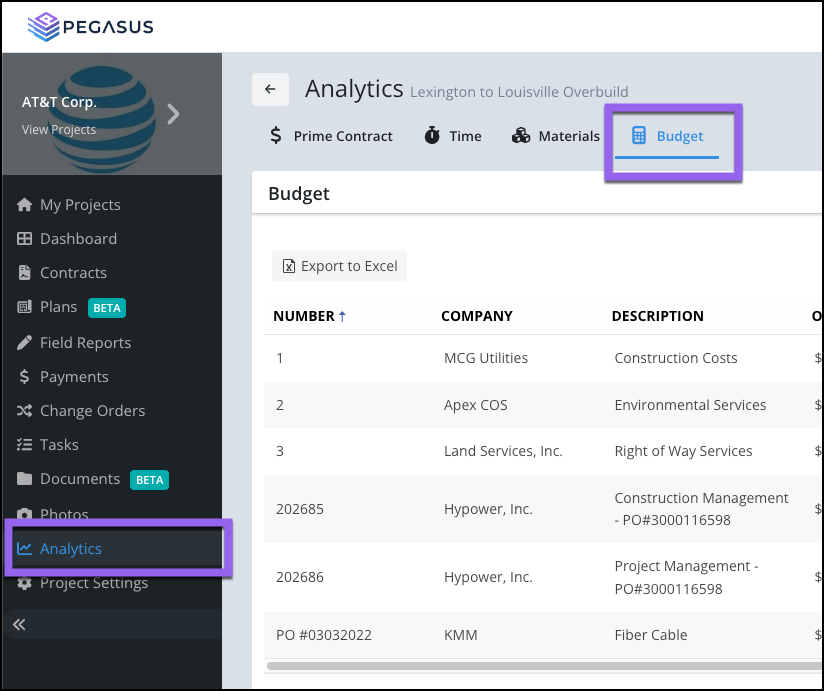
Updated over 4 months ago Table of contentsNavigate to your project's Analytics page and select the Budget tab.

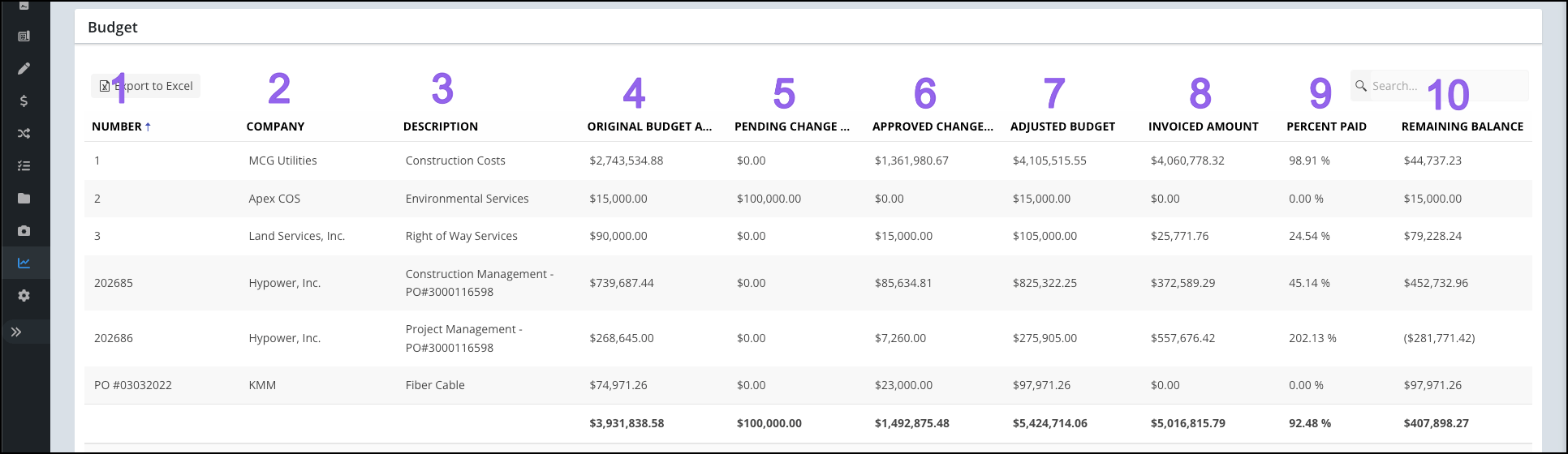
From this page you can view all Contract and Commitment data including:

-
Contract/Commitment Number
-
Company
-
Description
-
Original Budget Amount
-
Pending Change Order
-
Approved Change Order
-
Adjusted Budget
-
Invoiced Amount
-
Percent Paid
-
Remaining Balance
Contract/Commitment Number
Company
Description
Original Budget Amount
Pending Change Order
Approved Change Order
Adjusted Budget
Invoiced Amount
Percent Paid
Remaining Balance
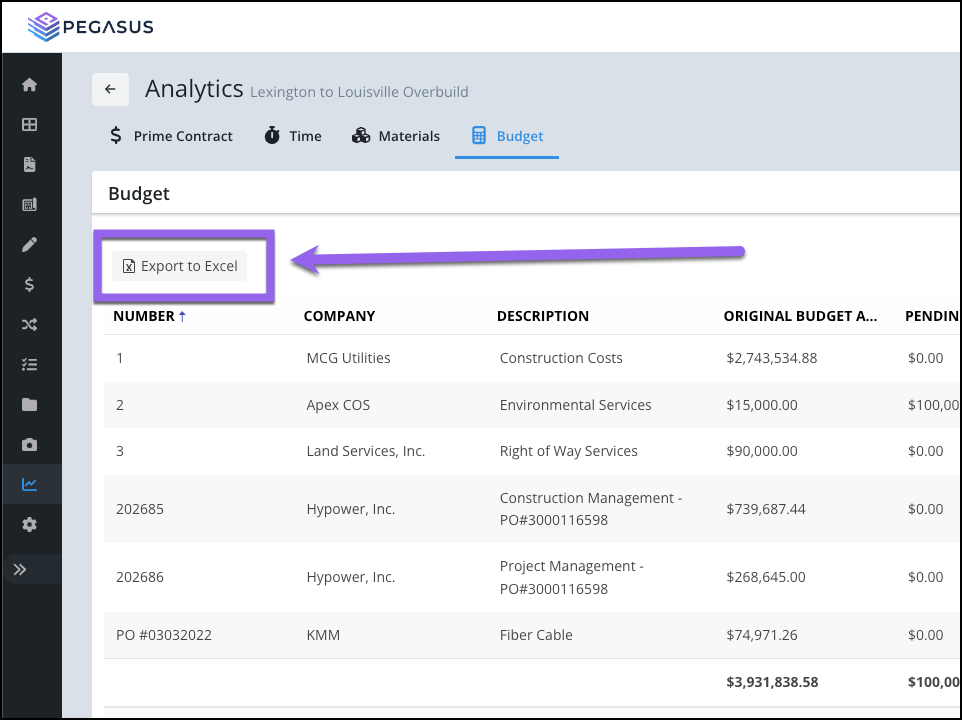
Export to Excel
To export and view your budget sheet in Microsoft Excel select the Export to Excel button:
 Related Articles
Creating a Daily Construction Report
Account Roles & Project Permission Sets
What are Commitments in Pegasus?
How to create Commitments Did this answer your question?😞😐😃
Related Articles
Creating a Daily Construction Report
Account Roles & Project Permission Sets
What are Commitments in Pegasus?
How to create Commitments Did this answer your question?😞😐😃