
Use the Billing page in the Admin Console to manage billing information, payment methods, and subscription licenses.
Updated over 2 months ago Table of contentsRemember: Users need to be assigned an active license in order to perform any actions at the project-level within Pegasus. If a user does not have a license, an Owner or Admin within the organization will need to assign the user a license from the Admin Console > Users page. Purchase additional licenses from the Billing page.
Rules
Access to the Billing page requires users to be assigned the Owner Account Role.
Features
-
Manage Pegasus subscription licenses
-
Manage billing information:
-
Payment Methods
-
Manage Subscriptions and Licenses
-
Billing Contact Information
-
Pay Overdue Invoices
-
-
View or Download Pegasus billing invoices
-
Pause Subscriptions
Manage Pegasus subscription licenses
Manage billing information:
Payment Methods
Payment Methods
Manage Subscriptions and Licenses
Manage Subscriptions and Licenses
Billing Contact Information
Billing Contact Information
Pay Overdue Invoices
Pay Overdue Invoices
View or Download Pegasus billing invoices
Pause Subscriptions
How to Add Licenses to a Pegasus Subscription
Navigate to the Billing page in the Admin Console. Locate the Subscription plan you would like to modify (Yearly or Monthly) then select the Manage Seats button for that subscription plan.

Select the + or - buttons to increase or decrease your license count.
When finalized select the Proceed to Checkout button and then proceed by selecting the Subscribe button.
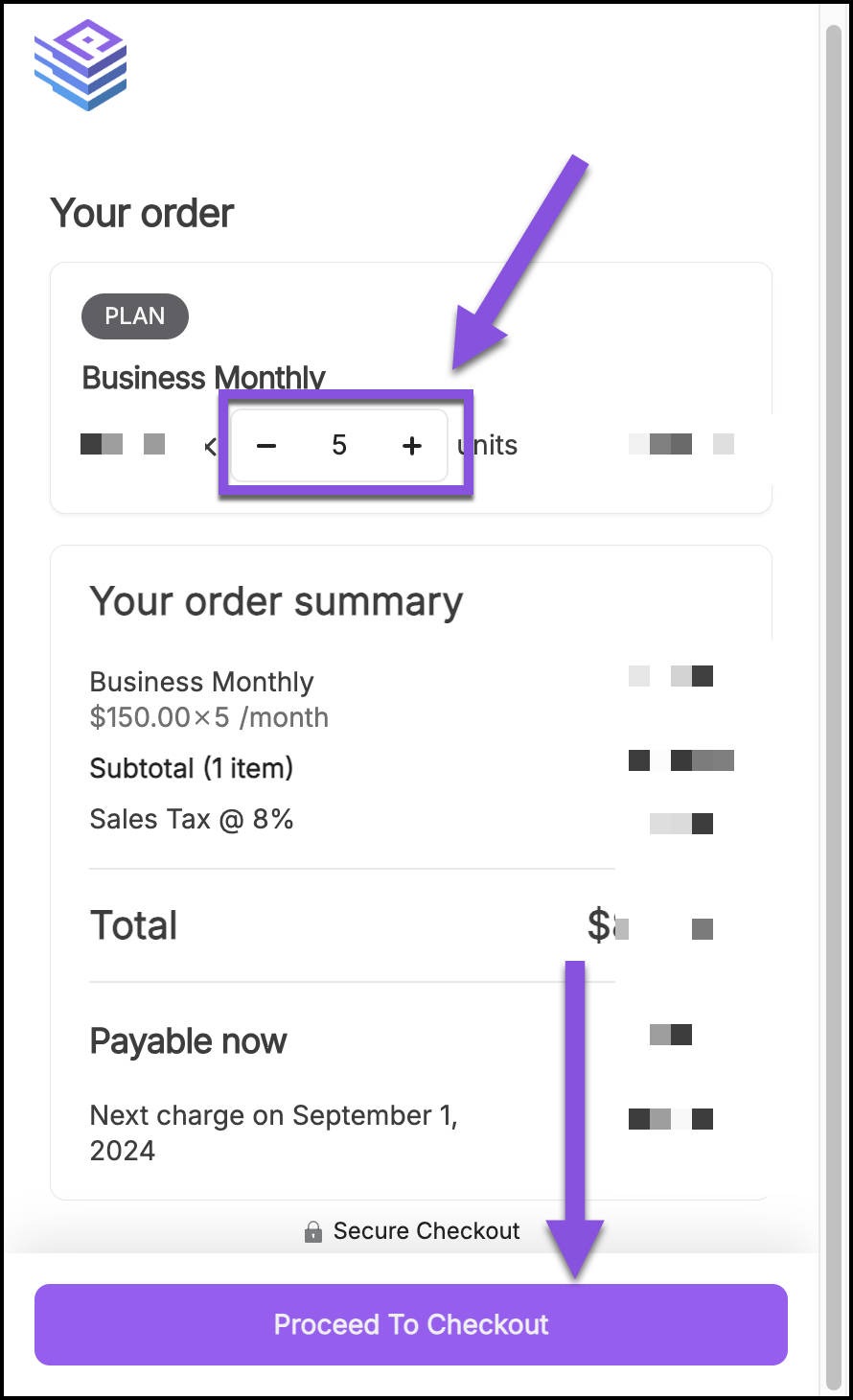
You have successfully updated your Pegasus subscription's license count. Depending on your active payment method, your account will be charged or invoiced upon completion.
Next, you will need to assign licenses to your users from the Admin Console: Users page. Continue below for detailed steps on assigning licenses to users and optionally removing them from users.
How to Add or Change your payment method
Use this walk through if you are a new customer need licenses for your account or existing customers that would like to change their payment method to credit/debit card:
Navigate to the Billing page in your Admin Console and select the Manage Account link:

Select the Payment Methods option.

Enter your Billing Contact and Card information in the relevant fields shown in the image below. Select the Add button when finished.

Your new payment method is now saved to your Pegasus account for future billing.
How to Cancel or Pause a Subscription
Coming soon to the billing page.
Contact [email protected] or send us a message using our chat bot below for immediate assistance.
Related Articles Update Company Information and Logo Invite Your Teammates to Pegasus: Creating & Managing Users Getting Started with the Admin Console How to Assign a User License in Pegasus How to update your Payment Method in Pegasus Did this answer your question?😞😐😃